

Managing multiple forex accounts manually is a recipe for missed trades, inconsistent lot sizing, and costly errors that compound over time. If you’re running three or more accounts and trying to mirror every position by hand, you already know the frustration. Automated trading workflows built around Expert Advisor software solve this problem at the root, replicating trades from a single master account to multiple client accounts in under half a second. This guide walks you through every stage: understanding what these workflows involve, assembling the right tools, configuring your setup, fixing common errors, and verifying that everything runs exactly as intended.
Key Takeaways
| Point | Details |
|---|---|
| Automation eliminates manual errors | Using trade copiers and Expert Advisors streamlines replication and accuracy for multi-account trading. |
| Preparation is key | Proper tools and account setup prevent workflow issues and set the stage for successful automation. |
| Troubleshooting ensures reliability | Regular verification and quick fixes minimize downtime and maintain workflow integrity. |
| Workflow optimization improves execution consistency | Fine-tuning software and processes reduces configuration drift and minimizes execution errors. |
Understanding automated trading workflows in forex
An automated trading workflow is a structured process where software handles trade entry, replication, and management across multiple accounts without manual input. Instead of logging into each terminal and placing orders one by one, you execute a trade on your master account and the system propagates it instantly to every connected client account. The result is consistent execution, identical timing, and no human bottlenecks.
Expert Advisors (EAs) are the engine behind this process. These are programs that run directly inside MetaTrader 4 or MetaTrader 5 and respond to market conditions or incoming trade signals automatically. When paired with a forex trade copier, EAs become the backbone of a fully automated multi-account operation. Trade copier solutions automate trade replication between accounts, removing the need for any manual intervention once the system is live.
Here’s a direct comparison of manual versus automated trade management:
| Factor | Manual management | Automated workflow |
|---|---|---|
| Execution speed | 5 to 30 seconds per account | Under 0.5 seconds |
| Error rate | High (human input) | Near zero |
| Scalability | Limited by time | Scales with your plan — up to 15 simultaneous VPS instances on VIP |
| Lot sizing consistency | Inconsistent | Configurable per account |
| Availability | Requires active monitoring | Runs 24/5 unattended |
The numbers make the case clearly. Automated replication removes manual re-entry steps, which eliminates a primary source of execution errors in multi-account management. For a deeper look at how algorithmic trading in forex applies to multi-account setups, that guide covers the full context. When you’re managing funded accounts or client portfolios, that consistency isn’t optional. It’s the baseline expectation.
Key benefits of automated workflows include:
- Simultaneous replication across MT4, MT5, and DXTrade accounts
- Automatic lot scaling based on each client account’s balance
- No re-entry errors from mistyped lot sizes or wrong symbols
- Continuous operation without requiring you to be at your desk
Essential tools and prerequisites for automation
Before you configure anything, you need the right foundation. Missing even one component can cause the entire workflow to fail silently, which is worse than an obvious error because you may not notice until trades are already missed.
Here’s what you need before starting:
- MetaTrader 4 or MetaTrader 5 installed on a Windows PC or VPS
- Trade copier software compatible with your platforms (MT4, MT5, or DXTrade)
- A stable internet connection or a VPS with guaranteed uptime
- Broker accounts with automated trading permissions enabled
- Separate terminal instances for master and each client account
The trade copier installation process requires that MT4 and MT5 platforms, trade copiers, and stable brokers are all properly configured before you go live. Skipping the compatibility check between your broker’s server and your EA settings is one of the most common setup mistakes.

Woman installs trade copier software in workspace
| Tool | Purpose | Requirement level |
|---|---|---|
| MT4 or MT5 terminal | Trade execution platform | Mandatory |
| Local Trade Copier EA | Trade replication engine | Mandatory |
| Windows PC or VPS | Local execution environment | Mandatory |
| Stable broker account | Order routing | Mandatory |
| Demo account | Pre-live testing | Strongly recommended |
For multi-account trading management, your VPS or local machine needs to stay online continuously. Any interruption breaks the replication chain.
Pro Tip: Run your trade copier on a dedicated VPS rather than your personal computer. Home machines sleep, restart for updates, and lose power. A VPS stays online 24/5 without interruption, which is non-negotiable when you’re managing live client accounts.
Step-by-step workflow setup for trade replication
With your tools ready, here’s how to build the workflow from scratch:
- Install MetaTrader terminals for both your master account and each client account on the same Windows machine or VPS.
- Download and install the Local Trade Copier EA files into the correct MT4 or MT5 data folders for each terminal.
- Configure the Server EA on your master terminal, setting the trade signal output folder and enabling automated trading in MT4/MT5 settings.
- Configure the Client EA on each client terminal, pointing it to the same shared folder and setting your preferred lot sizing mode (fixed, balance-based, equity-based, or one of 15 other options).
- Set risk parameters per client account, including maximum lot size, stop loss replication preferences, and symbol mapping if broker names differ.
- Enable AutoTrading in each terminal and confirm the EA is running without errors in the Experts tab.
- Place a test trade on the master account and verify it appears on all client accounts within seconds.
Trade copier solutions enable replication from one master to multiple clients simultaneously, and the setup process is the same whether you’re copying to 2 accounts or more — the number of accounts you can run simultaneously depends on your plan. The key is keeping all terminals on the same machine so there’s no network latency between them.
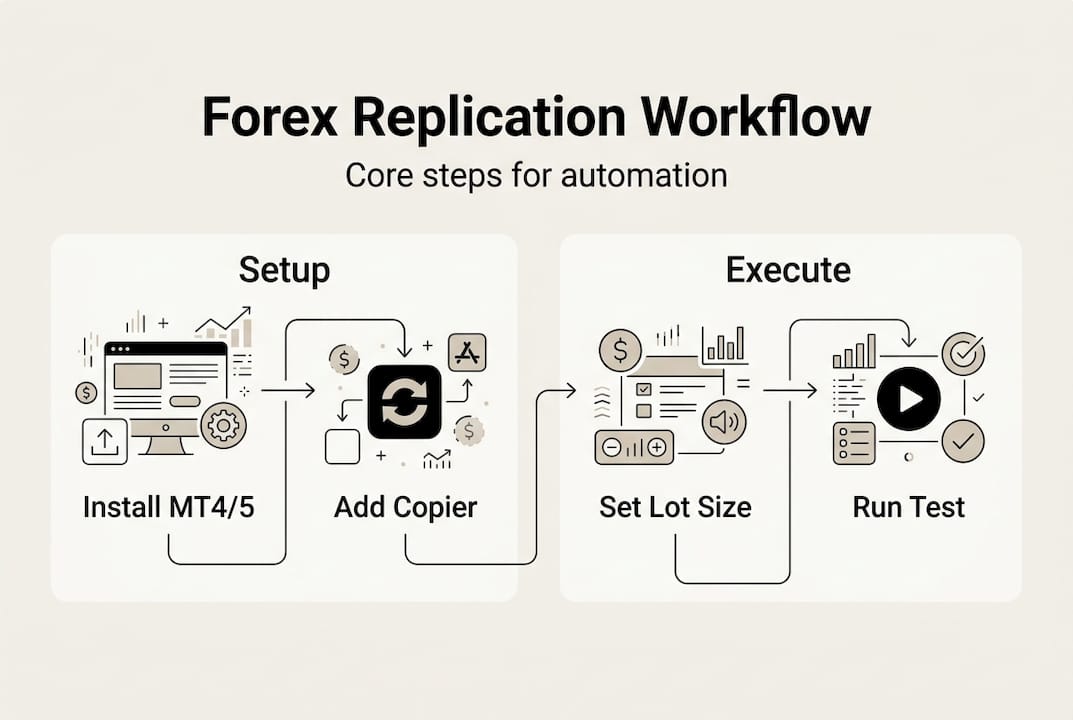
Infographic showing core forex workflow steps
When you automate forex trading with MetaTrader, lot sizing becomes one of your most important configuration decisions. A client account with half the balance of your master should not receive the same lot size. Use balance-proportional scaling to keep risk consistent across all accounts.
Pro Tip: Always test your full setup on demo accounts before switching to live. Run it for at least 48 hours, place multiple trade types (market orders, pending orders, partial closes), and confirm every action replicates correctly before risking real capital.
Common workflow errors and troubleshooting strategies
Even a well-configured system can develop issues. Knowing where to look saves hours of frustration.
The most frequent problems include:
- AutoTrading disabled in one or more terminals (the most common cause of missed copies)
- Incorrect folder paths in the Client EA settings, pointing to the wrong signal directory
- Broker symbol mismatches, where the master uses “EURUSD” but the client broker uses “EURUSDm”
- Account permissions not set to allow automated trading at the broker level
- Antivirus or firewall software blocking EA file access or folder writes
- Terminal not running because the VPS restarted and MT4/MT5 didn’t launch automatically
Trade copiers sometimes do not copy trades due to configuration issues that are easy to overlook during initial setup. The fix is almost always in the settings, not the software itself.
Important: Always verify that automated trading permissions are enabled at both the platform level (the AutoTrading button in MT4/MT5) and the broker account level before running any live replication. Trading without confirmed permissions can result in the master executing trades that never reach client accounts, creating dangerous position mismatches.
For troubleshooting trade copier errors, work through a checklist: confirm AutoTrading is on, verify folder paths match exactly, check the Experts tab for error messages, and test with a single client terminal before adding others back.
Verifying results and optimizing your workflow
Setup is not a one-time event. Your workflow needs regular verification to catch drift before it becomes a problem.
Here’s how to stay on top of it:
- Review the MT4/MT5 Experts tab logs after every trading session for warnings or errors
- Compare trade history between master and client accounts weekly to confirm replication accuracy
- Monitor execution timestamps to ensure copies are arriving within your expected latency window
- Check lot sizes on client accounts against your configured scaling rules after each trade
- Update the EA software whenever new versions are released to maintain compatibility with broker server updates
Workflow optimization improves trade accuracy and reduces configuration errors over time. Traders who actively review logs and update settings catch configuration drift early, before it causes missed trades or incorrect lot sizes on live accounts.
One area worth specific attention is stop loss and take profit replication. Some brokers process SL/TP differently, and timing mismatches can cause these levels to arrive after the order is already open. Reviewing safety updates for trade copier settings helps you stay current with fixes that address exactly these edge cases.
Optimization is also about knowing when your current setup has reached its limits. If you’re adding more client accounts, scaling lot sizes significantly, or switching brokers, revisit your entire configuration from step one rather than patching individual settings.
Next steps: enhancing your automated trading workflow
You now have a complete picture of how to build, run, and maintain an automated trade replication workflow. The next move is putting the right software behind it.
Local Trade Copier has been the go-to locally-installed trade copier for MT4, MT5, and DXTrade since 2010, with over 3,000 active users and Trustpilot-verified reviews backing its reliability. The software runs entirely on your machine, with no cloud routing and sub-0.5-second execution. You can explore the full trade copier installation guide to see exactly how setup works, watch the trade copier demo to see replication in action, and review the wait for SL/TP replication feature if precise stop loss and take profit copying is a priority for your accounts. A 7-day free trial is available with no commitment required.
Frequently asked questions
What is an automated trading workflow and why is it important?
An automated trading workflow connects Expert Advisors and trade copiers so that trades replicate across multiple accounts instantly, eliminating manual errors. Trade copier solutions automate replication between accounts, making consistent multi-account management possible at any scale.
What tools are necessary for automated trading workflows?
You need MT4 or MT5 platforms, trade copier software, a reliable Windows PC or VPS, and properly configured broker accounts. The Local Trade Copier installation page covers the full requirements for MT4 and MT5 setups.
How can I troubleshoot automation errors in my workflow?
Start by checking that AutoTrading is enabled in every terminal, then verify folder paths and symbol names match between master and client accounts. Most issues covered in trade copier troubleshooting come down to a misconfigured setting rather than a software fault.
How do I verify my automated trading workflow is working correctly?
Monitor the Experts tab logs after each session, compare trade histories between accounts, and run periodic test trades to confirm replication is accurate. Algorithmic trading optimization practices recommend reviewing performance stats regularly to catch errors before they affect live results.
Recommended
- How to automate forex trading with MetaTrader platforms
- Trade copying best practices for efficient forex management
- FX Account Cloning™ Setup: Trade Forex On Many Accounts
- The Definitive Guide to Forex Trade Copying
