

TL;DR:
- An MT5 Expert Advisor cannot run directly on DXTrade but can execute trades via a trade-copier bridge using DXTrade’s REST API. Proper setup requires enabling WebRequest in MT5, configuring symbol mappings, and running the copier on a stable, fixed-IP environment like a VPS.
An MT5 Expert Advisor cannot run natively on DXTrade — but it absolutely can execute trades there. The route is a trade-copier bridge: your EA runs on MT5 as usual, and a copier EA monitors those trades and sends them to DXTrade via its REST API. The recommended implementation is Local Trade Copier, which handles the MT5-to-DXTrade bridge locally on your PC or VPS, with no cloud routing. MetaTrader 4 (MT4) users get the same capability under one subscription. Past results do not guarantee future performance.
The critical MT5 setting that makes this work: Tools > Options > Expert Advisors > Allow WebRequest for listed URL. Add your DXTrade base URL there exactly, and the copier EA can reach DXTrade’s API. Miss that step, and nothing connects.
MT5 robot to DXTrade account setup: quick checklist
If you need to hand this to a technician or just want the short version before reading the full guide, here it is.
- Place the copier EA file (.ex5) into your MT5 MQL5/Experts folder
- In MT5, go to Tools > Options > Expert Advisors and add your DXTrade base URL to “Allow WebRequest for listed URL” (format:
https://demo.dx.trade/— base URL only, no extra path) - Attach the EA to a chart, open its inputs, and enter your DXTrade username, password, account number, and base URL
- Set your lot multiplier and configure symbol mapping (strip suffixes like
.iormif your MT5 broker uses them) - Test on a demo DXTrade account first; check the MT5 Experts tab for connection status
- Enable logging and reconcile MT5 ticket IDs against DXTrade order history before going live
Pro Tip: Run the copier on a VPS with a fixed IP and a controlled timezone. A static IP reduces session-token rejections from DXTrade, and a stable clock prevents timestamp mismatches that can cause order reconciliation failures.
Why connect MT5 EAs to DXTrade?
The most common driver right now is prop-firm migration. A number of funded-account programs have moved their execution platforms from MT5 to DXTrade, leaving traders with EAs, indicators, and backtested strategies that exist only in MQL5. The copier bridge lets you keep your analysis and automation exactly where it is while satisfying the firm’s platform requirement.
Three use cases dominate:
- Prop-firm migration: Your EA stays on MT5; the copier sends execution to your funded DXTrade account. You don’t rebuild anything.
- Signal distribution: One MT5 master strategy feeds multiple DXTrade accounts simultaneously, each with its own lot multiplier and symbol filter.
- Legacy automation: Indicators, custom scripts, and strategy-tester workflows that have no DXTrade equivalent stay on MT5, where they belong.
The limitations are real and worth stating plainly. DXTrade has no MQL5 runtime. You cannot drop an .ex5 file onto a DXTrade chart. All automation must be external and must call DXTrade’s REST API from outside the platform. DXTrade also has no built-in strategy tester, so backtesting stays on MT5 regardless. You can check the MT4 vs MT5 platform differences for more context on why the two environments diverge.
One operational risk that catches traders off guard: some prop firms actively monitor for patterns that suggest copy trading across platforms. Identical entry times, sizes, and symbols appearing on multiple accounts can trigger a review. Confirm your firm’s copy-trading policy before deploying at scale.
How does an MT5 to DXTrade trade copier actually work?
The architecture has three moving parts: the MT5 terminal running your EA, the copier bridge monitoring trade events, and the DXTrade REST API receiving orders.
Here’s the data flow. Your EA opens, modifies, or closes a position on MT5. The copier EA, also running on MT5, detects that event on the next polling cycle. It formats an HTTP request and sends it to DXTrade’s REST API endpoint for order placement, modification, or cancellation. DXTrade authenticates the session, executes the order, and returns a confirmation. The copier logs the DXTrade ticket ID alongside the MT5 ticket ID for reconciliation.
The bridge must handle five trade events, not just opens: new position, SL/TP modification, partial close, full close, and order cancellation. A copier that only mirrors entries will leave orphaned positions on DXTrade when you modify or close on MT5.
The MT5 algorithmic trading documentation confirms that EAs can make outbound HTTP calls only when WebRequest is explicitly enabled for the target URL. That’s why the base-URL entry in MT5 options is non-negotiable — without it, every API call is blocked at the platform level before it reaches DXTrade.
Timing matters too. The copier assigns unique order codes per DXTrade terminal so that orders can’t route to the wrong account when you’re managing multiple destinations. Session tokens have expiry windows, so a well-built copier runs keep-alive pings to prevent mid-session disconnections. For a general overview of how MT5 EAs connect to external services via WebRequest and API calls, the Sonic AI Gold Myfxbook guide covers the configuration concepts clearly.

What do you need before starting the setup?
Get these in order before you touch any EA settings. Missing one of them is the most common reason the first connection attempt fails.
- DXTrade base URL — the root URL of your DXTrade instance (e.g.,
https://demo.dx.trade/). Use the base URL only. Do not append/login,/dashboard, or any path. The DXTrade base URL format is documented specifically because this is where most setup errors originate. - DXTrade credentials — your username or email, password, and account number. Have these ready before opening the EA inputs.
- MT5 terminal version — confirm MT5 is up to date. Open Help > About in MT5 and note the build number. Older builds occasionally have WebRequest bugs that cause silent failures.
- EA file in the right folder — the copier .ex5 file must be in
MQL5/Experts, notMQL4/Expertsand not the MQL5 root. MT5 only reads EAs from that specific subfolder. - Outbound HTTPS allowed — your PC or VPS firewall must permit outbound connections on port 443. If you’re on a corporate network or a locked-down VPS, confirm this before setup.
- DXTrade API order placement enabled — some prop firms restrict API access or copy trading at the account level. Verify with your firm that your specific account is permitted to receive API-placed orders.
- Log file access — you’ll need read access to the MT5 Experts tab and the EA log files for diagnostics. On a VPS, confirm you can open the terminal window and view the Experts tab remotely.
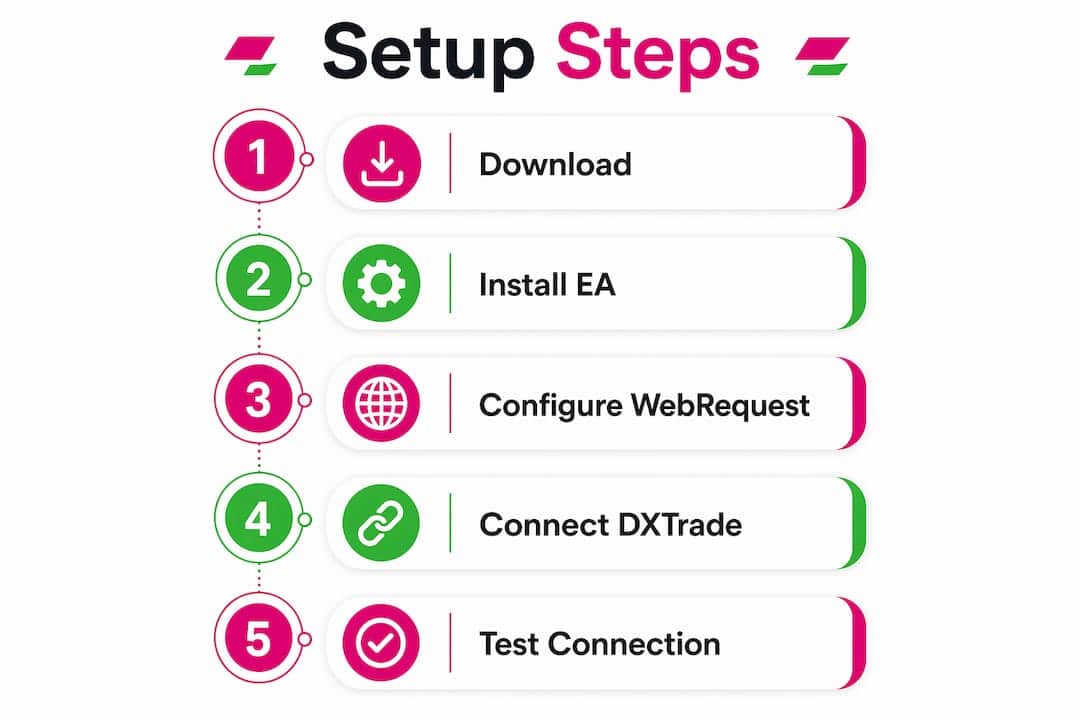
Step-by-step: install the MT5 copier EA and connect to DXTrade
This is the full configuration sequence. Follow it in order.
-
Download and place the EA. Download the copier from mt4copier.com/installation. Copy the .ex5 file into your MT5 data folder under
MQL5/Experts. In MT5, click File > Open Data Folder to find it. Restart MT5 fully after placing the file — a Navigator refresh sometimes misses newly added EAs. -
Enable AutoTrading and WebRequest. Click the “Algo Trading” button in the MT5 toolbar until it turns green. Then go to Tools > Options > Expert Advisors. Check “Allow automated trading” and “Allow WebRequest for listed URL.” In the URL field, type your DXTrade base URL exactly —
https://demo.dx.trade/for demo, or your live instance URL. Click OK. -
Attach the EA to a chart. Open any chart (the timeframe doesn’t affect copying behavior, but M1 or M5 keeps CPU usage low). Drag the copier EA from the Navigator panel onto the chart. The EA Properties window opens. On the Common tab, tick “Allow Algo Trading.” On the Inputs tab, enter your DXTrade credentials.
-
Enter EA inputs. Fill in: DXTrade Username, DXTrade Password, Account Number, and Server URL (the base URL you added to WebRequest). Set your lot multiplier — if your MT5 account is $100,000 and your DXTrade account is $10,000, set the multiplier to 0.1. Configure symbol mapping rules (covered in the next section).
-
Verify the connection. After clicking OK, watch the EA dashboard on the chart. A successful connection shows “Connected” status and populates the DXTrade balance and equity fields. If it shows “Not Connected,” open the Experts tab at the bottom of MT5 immediately — the EA logs the specific error message there.
-
Run a staged test. Place a small trade on your MT5 master account and confirm it appears on DXTrade within a few seconds. Check the MT5 Experts tab for the confirmation log line. Then test an SL/TP modification and a full close. Only after all three scenarios pass should you consider the connection verified.
Pro Tip: Attach the copier EA to an M1 chart of a low-spread pair like EURUSD. This keeps the EA’s tick-processing load minimal while still giving it frequent polling cycles. Avoid attaching to a chart you actively trade — EA conflicts can cause unexpected behavior.
How do you handle symbol mismatches between MT5 and DXTrade?
Symbol naming is a more common failure point than authentication. MT5 brokers routinely add suffixes (.i, m, z) or prefixes to instrument names. DXTrade uses its own naming convention. When the names don’t match, the copier either rejects the order or sends it to the wrong instrument.
The user manual for the MT4/MT5 to DXTrade copier documents the suffix-stripping and whitelist/blacklist options that handle this automatically. Here’s how the mapping logic works in practice:
| MT5 Symbol | DXTrade Symbol | Contract Size Ratio | Lot Multiplier Formula |
|---|---|---|---|
| EURUSDm | EURUSD | 1:1 | DX lots = MT5 lots × account multiplier |
| EURUSD.i | EURUSD | 1:1 | Strip .i suffix; DX lots = MT5 lots × multiplier |
| XAUUSDm | XAUUSD | 1:1 | Strip m suffix; verify DX min lot (often 0.01) |
| US30 | US30.cash | 1:1 | Map name explicitly; confirm DX instrument name |
Three practical rules to apply before going live:
- Strip known suffixes in the EA’s symbol suffix field. Enter the suffix your MT5 broker uses (e.g.,
mor.i) and the copier removes it before looking up the instrument on DXTrade. - Use a whitelist when you only want specific pairs copied to a given DXTrade account. Leave the blacklist empty if you’re whitelisting; leave both empty to copy everything.
- Verify minimum lot size and step on DXTrade before setting multipliers. Some DXTrade prop firms set a minimum of 0.01 lots with a 0.01 step. If your multiplied lot size falls below the minimum or doesn’t align with the step, the order will be rejected.
Confirm every instrument is actually available on your DXTrade account before running live. An instrument that exists on MT5 may not be listed on your specific DXTrade prop firm.
Risk controls and prop-firm compliance when copying MT5 EAs
Prop-firm accounts have rules that don’t apply to personal accounts, and a trade copier can violate them in ways that aren’t obvious until your account gets flagged.
Compliance checklist before deploying:
- Confirm the prop firm’s written policy on copy trading and external automation. Some firms permit it; others prohibit it entirely or require disclosure.
- Check whether the firm monitors for cloud IP addresses. Running the copier on a well-known cloud provider’s IP range can trigger a review even if copy trading is technically allowed.
- Document who controls the master strategy. If the firm asks, you need a clear answer.
- Disclose copying to the firm if their rules require it — don’t assume silence equals permission.
Operational controls to put in place:
- Set per-account lot limits in the copier so a single large MT5 trade can’t exceed the DXTrade account’s margin capacity.
- Configure a daily max exposure cap and an auto-close failsafe for emergency situations.
- Log every API call and response. When something goes wrong, the logs are the only way to reconstruct what happened and when.
Security note: Never share your DXTrade credentials in a support ticket or forum post. If you must share them for troubleshooting, rotate the password immediately afterward. The trade copier security guide recommends using strong, unique passwords and rotating them on a scheduled basis — not just after incidents.
Past results do not guarantee future performance.
Local PC, VPS, or cloud service: where should you run the copier?
Where you run the copier affects latency, IP stability, and how visible the setup is to prop-firm monitoring systems.

| Factor | Local Machine | VPS | Cloud Service |
|---|---|---|---|
| Latency | Low (same network) | Low to medium | Medium to high |
| IP stability | Dynamic (changes on router restart) | Static (fixed IP) | Shared/rotating IPs |
| Detectability | Low (residential IP) | Low (dedicated IP) | Higher (data center IP ranges) |
| Cost | None (hardware you own) | $10–30/month typical | Varies by provider |
| Reliability | Depends on your power/internet | High (uptime SLAs common) | High, but routing adds risk |
For most prop-firm workflows, a VPS with a fixed IP is the right call. Your local machine is fine for testing, but a power outage or ISP hiccup at the wrong moment can leave positions unmanaged on DXTrade. A cloud-based bridge adds a layer of IP routing that some prop firms flag, even when copy trading is permitted.
Three operational details that matter regardless of where you run it: session keep-alive pings (the copier should ping DXTrade every 20–25 minutes to prevent timeout disconnections), a watchdog thread that auto-reconnects if a session drops, and persistent terminal memory so your settings survive a restart without re-entry.
Pro Tip: When setting up a VPS, choose a Windows Server instance in the same geographic region as your DXTrade prop firm’s servers. The closer the VPS, the lower the round-trip time on API calls — which matters when markets are moving fast.
Why Local Trade Copier fits this use case
Mt4copier’s Local Trade Copier has been the most established locally-installed trade copier for MT4, MT5, and DXTrade since 2010. With 3,000+ users and 491 Trustpilot reviews, it’s the product with the longest track record in this specific niche.
The MT5-to-DXTrade component covers everything this guide has described:
- MT4 and MT5 source support under one subscription
- Per-terminal lot multipliers with 18 lot-sizing and risk management options
- Symbol suffix stripping, whitelist, and blacklist per terminal
- Auto-reconnect watchdog and persistent terminal memory
- Sub-0.5-second local execution (brand-stated figure)
- No cloud routing — all trade data stays on your machine, one IP address
The 7-day free trial covers all components: MT4 copier, MT5 copier, MT4-to-DXTrade, and MT5-to-DXTrade. You can run the full demo scenario before committing to a subscription. The MT4 to DXTrade video tutorial walks through installation and a live demo run if you want to see the process before downloading.
Testing checklist: verify the bridge before going live
Don’t skip this. A copier that looks connected can still fail on modifications, partial closes, or multi-account scenarios. Run through this sequence on a demo DXTrade account.
- Single entry test. Open a 0.01-lot trade on MT5. Confirm it appears on DXTrade within a few seconds with the correct symbol, direction, lot size, SL, and TP.
- SL/TP modification. Modify the SL and TP on the MT5 position. Confirm the changes mirror on DXTrade within the expected latency window.
- Partial close. Close half the MT5 position. Confirm DXTrade reflects the partial close, not a full close.
- Full close. Close the remaining MT5 position. Confirm DXTrade closes fully and no orphaned position remains.
- Order cancellation. Place a pending order on MT5 and then cancel it. Confirm DXTrade cancels the corresponding pending order.
- Multi-account stress test. If you’re copying to more than one DXTrade account, run steps 1–5 simultaneously and confirm each account behaves independently.
For reconciliation, match MT5 ticket IDs to DXTrade order codes in the logs. Check timestamps — a gap of more than a few seconds on a fast market warrants investigation. Note any P&L rounding differences between platforms; these are normal but should be consistent. The demo video shows what a clean test run looks like and what the log output should contain.
Set up alerts for: rejected orders (any HTTP 400/401/403 response in the logs), latency above your threshold, and SL/TP values that don’t match between platforms after a modification.
Common issues and how to fix them
Most failures fall into four categories. Here’s how to diagnose each one.
WebRequest not authorized:
- The DXTrade base URL is missing from MT5’s “Allow WebRequest for listed URL” list, or it was entered incorrectly (extra path, missing trailing slash, or wrong protocol).
- Fix: Go to Tools > Options > Expert Advisors, verify the URL exactly, click OK, and restart MT5. The troubleshooting guide covers this step in detail.
Symbol mismatch or rejected orders:
- The MT5 symbol name (with suffix) doesn’t match the DXTrade instrument name.
- Fix: Enter the suffix in the EA’s symbol suffix field. Check the DXTrade instrument list to confirm the exact name. Verify minimum lot size and step — a lot size that doesn’t align with DXTrade’s step increment will be rejected silently.
HTTP status codes tell you exactly what failed. A 401 means authentication failed — wrong credentials or an expired session. A 403 means the account doesn’t have permission for the action (check prop-firm API restrictions). A 400 means the request payload is malformed — usually a symbol name mismatch or an invalid lot size. Find these codes in the MT5 Experts tab log lines.
Session drops and reconnection failures:
- The DXTrade session token expired and the copier didn’t reconnect automatically.
- Fix: Confirm the copier’s watchdog and keep-alive settings are active. On a VPS, check that the MT5 terminal window is not minimized to a state that suspends background processes.
Credential errors after support interaction:
- If you shared credentials during troubleshooting, rotate the DXTrade password immediately. Re-enter the new password in the EA inputs and verify the connection.
Quick diagnostic flow: check the MT5 Experts tab first. The EA logs a specific message for every failure type. Reproduce the error with verbose logging enabled, capture the log output, and include it when contacting support.
Key Takeaways
An MT5 EA executes on DXTrade through a trade-copier bridge that translates MT5 trade events into DXTrade REST API calls — local execution on your PC or VPS keeps the IP stable and the latency low.
| Point | Details |
|---|---|
| MT5 WebRequest setting | Add the DXTrade base URL exactly to Tools > Options > Expert Advisors > Allow WebRequest for listed URL before anything else. |
| Symbol mapping first | Verify instrument names and minimum lot sizes on DXTrade before going live — mismatches cause silent rejections more often than auth errors. |
| Per-account lot multipliers | Use per-terminal multipliers to match account equity differences; never modify the master EA’s strategy parameters for sizing. |
| Prop-firm compliance | Confirm copy-trading policy in writing, run on a fixed-IP VPS, and keep full API call logs for post-mortem analysis. |
| Mt4copier recommendation | Local Trade Copier covers MT5-to-DXTrade with local execution, 18 lot-sizing options, and a 7-day free trial — active since 2010 with 491 Trustpilot reviews. |
A few things most guides won’t tell you
The conventional advice on MT5-to-DXTrade integration focuses almost entirely on the connection step. Get the URL right, enter your credentials, done. That framing misses where the real operational risk lives.
Symbol mapping and contract-size verification cause more live failures than authentication ever does. A trader who breezes through the connection step and skips the instrument verification ends up with positions sized incorrectly or rejected outright — often during a fast market when the cost of a missed execution is highest. The authentication step is a one-time problem; symbol mapping is an ongoing one, because prop firms occasionally rename instruments or change contract specifications without notice.
The other thing worth saying plainly: local execution isn’t just a latency preference. For prop-firm accounts, it’s a compliance posture. Running the copier on a well-known cloud provider’s IP range puts you in a category that some firms monitor specifically. A residential or dedicated VPS IP doesn’t attract the same scrutiny. That distinction rarely appears in setup guides because it’s inconvenient to explain, but it’s the reason experienced operators default to a dedicated VPS with a static IP rather than a managed cloud service.
Finally, the runbook habit. Keep a short document for each DXTrade destination: account ID, lot multiplier, symbol mapping rules, the prop firm’s support contact, and the last date you rotated credentials. When something breaks at 2 AM during a volatile session, you want that information in front of you in 30 seconds, not buried in an email thread.
Start your MT5-to-DXTrade free trial with Local Trade Copier
If your MT5 EA is ready and your DXTrade account is waiting, the fastest path to a working connection is the 7-day free trial from Mt4copier. The trial covers all components under one plan: MT4 copier, MT5 copier, MT4-to-DXTrade, and MT5-to-DXTrade. No cloud routing, no shared infrastructure — everything runs on your machine.

Getting started takes three steps: download and install the software, place the copier EA into your MQL5/Experts folder, and add your DXTrade base URL to MT5’s WebRequest list. Attach the EA to a demo chart and run the included demo scenarios before touching a live account. The installation guide walks through every step, and the MT5-to-DXTrade product page covers the full feature set.
This is trade replication software only. It copies trades between accounts and has no strategy logic or market analysis. Test on demo first, verify behavior across all trade lifecycle events, and only move to live capital once reconciliation confirms everything is working. Past results do not guarantee future performance.
Start the 7-day free trial at mt4copier.com.
Useful sources and documentation
- MetaTrader 5 automated trading documentation — the official MT5 reference for algorithmic trading, WebRequest configuration, and EA capabilities. Start here to understand what MT5 permits EAs to do natively.
- Local Trade Copier MT5-to-DXTrade product page — feature list, supported scenarios, and trial details for the MT5-to-DXTrade bridge. The primary reference for what the copier does and how to start.
- MT4/MT5 to DXTrade copier user manual — detailed EA input reference covering symbol mapping, lot multipliers, whitelist/blacklist, and per-terminal settings. Open this alongside the EA inputs during configuration.
- Local Trade Copier installation guide — step-by-step EA placement, MT5 options configuration, and initial setup checks. The reference document for the installation sequence in this guide.
- Demo video and test walkthrough — a recorded demo run showing what a successful MT5-to-DXTrade copy looks like, including log output and reconciliation. Watch before your first live test.
- Trade copier security and VPS guide — operational security recommendations covering VPS setup, password practices, and credential rotation. Relevant for anyone running the copier on a prop-firm account.
- Troubleshooting: when the copier doesn’t copy trades — diagnostic steps for common failures, including MT5 Experts tab log interpretation and WebRequest authorization issues.
- DXTrade compatibility announcement — setup notes and base-URL formatting guidance specific to the DXTrade integration. Useful for the prerequisites section and base-URL troubleshooting.
Recommended
- MetaTrader Bots and Indicators for DXTrade I MT4 Copier
- Seamlessly Sync MetaTrader Bots with DXTrade Trade Copier
- How to Use MT4 to DxTrade Copier User Manual | Trade Copier for MT4 & MT5
- Automate trade management across MT4, MT5, and DXTrade
