

TL;DR: An MT4 Expert Advisor copier automatically replicates trades from a master account to multiple receiver accounts without manual input. Proper setup requires matching permissions, Channel IDs, and initiating the transmitter before receivers to ensure reliable trade copying. Troubleshooting common errors involves verifying AutoTrading, trade permissions, symbol names, and terminal operation order for optimal performance.
An MT4 Expert Advisor copier is a software tool that replicates trades from one MetaTrader 4 account to one or more receiver accounts automatically, with no manual re-entry required. The industry term for this process is local trade copying, and it runs entirely on your Windows machine or VPS. Forex account managers use it to push trades from a single master account to multiple client accounts in under a second. If you need to set up an MT4 Expert Advisor copier correctly the first time, this guide covers every step from prerequisites to scaling.
What tools and permissions do you need before setup?
Getting the prerequisites right prevents 90% of setup failures. Before you place a single EA file, confirm every item on this list.
Platform and file requirements:
- MT4 build 600 or later (check under Help → About)
- The copier EA in .ex4 format — not .ex5, which is MT5 only
- Separate MT4 terminal installations for each account you want to copy to (one terminal per account)
- A Windows PC or VPS with enough RAM to run all terminals simultaneously
Permission settings inside MT4:
- AutoTrading button enabled in the toolbar (the green “play” icon)
- “Allow Live Trading” checked inside the EA’s properties dialog
- DLL imports and WebRequests enabled under Tools → Options → Expert Advisors for copiers that use external communication
MetaTrader requires both switches active to permit EA trade execution. Enabling only the toolbar button while leaving “Allow Live Trading” unchecked still blocks all trades.
Transmitter and receiver terminology:
Every local copier setup uses a TX (transmitter) terminal and one or more RX (receiver) terminals. The TX terminal holds your master account and sends trade signals. Each RX terminal holds a client account and receives those signals. You need to decide which terminal plays which role before you touch any settings.

Dual MT4 terminals setup for EA copier transmitter and receiver
Pro Tip: Run each MT4 terminal from a separate installation folder, not multiple profiles inside one installation. This avoids shared file conflicts when multiple EA instances write to the same data directory.
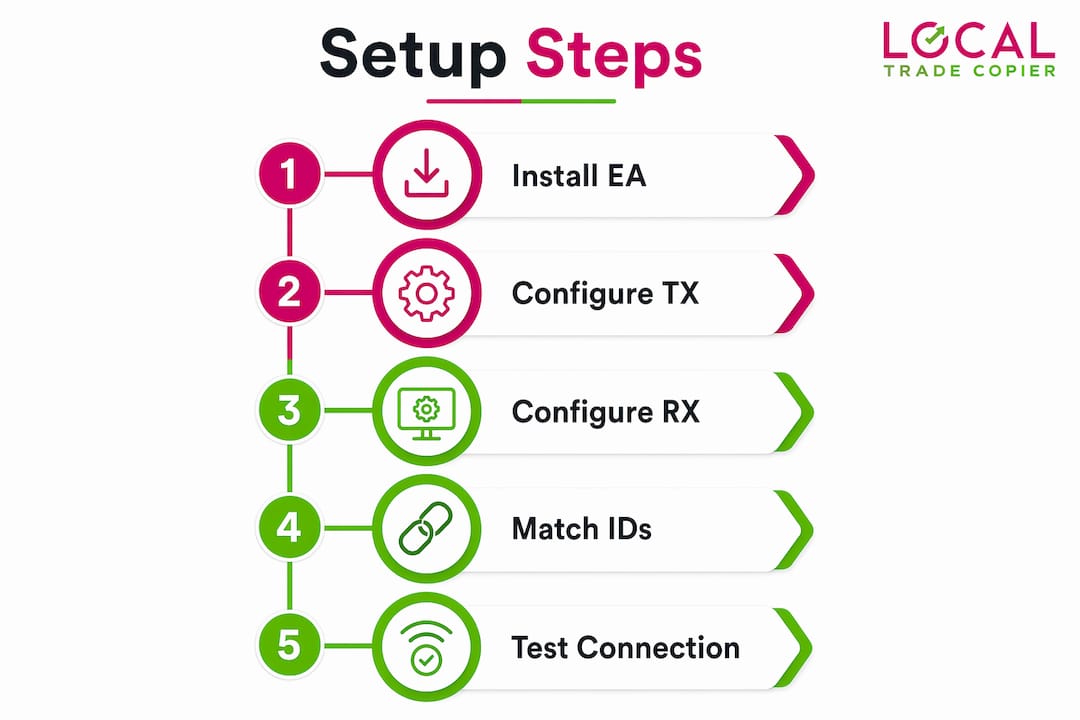
Infographic illustrating step-by-step MT4 EA copier setup process
How to install and configure the mt4 EA copier step by step
Follow this sequence exactly. Skipping steps or reversing the order is the most common cause of a copier that appears to run but never copies a trade.
- Place the EA file in the correct folder. Open MT4, go to File → Open Data Folder, then navigate to MQL4 → Experts. Copy the .ex4 file into that folder. Do this for every terminal, both TX and RX.
- Refresh the Navigator. Right-click inside the Navigator panel and select Refresh. The EA name appears under Expert Advisors. If it does not appear, confirm the file is in the right folder and has the .ex4 extension.
- Attach the EA to a chart on the TX terminal. Drag it onto any open chart. In the settings dialog, set the role to Transmitter and assign a unique TX ID (for example, “Master1”).
- Set the Channel ID. This is the shared identifier that links TX and RX terminals. Use the same Channel ID string on every terminal in your setup.
- Attach the EA to a chart on each RX terminal. Set the role to Receiver, assign a unique RX ID (for example, “Client1”, “Client2”), and enter the same Channel ID you used on the TX terminal.
- Configure lot sizing on each RX terminal. For your first test, set a fixed lot size of 0.01 to minimize risk while verifying the connection.
- Enable AutoTrading on all terminals and confirm the EA shows a smiley face icon, not a sad face. A sad face means “Allow Live Trading” is off.
- Run a verification trade. Open a small demo trade on the TX terminal and watch the RX terminal. The trade should copy within seconds if Channel IDs match and permissions are correct.
Here is a quick reference for the core configuration parameters:
| Parameter | TX Terminal | RX Terminal |
|---|---|---|
| Role | Transmitter | Receiver |
| Channel ID | Same value | Same value |
| Unique ID | TX ID (e.g., Master1) | RX ID (e.g., Client1) |
| Lot Size | Set by master trade | Fixed or scaled per account |
| AutoTrading | Enabled | Enabled |
Pro Tip: Always start the TX terminal before any RX terminals. Starting receivers first means they initialize without a live signal source, which can cause silent no-copy conditions that are difficult to diagnose.
How do you troubleshoot common mt4 EA copier errors?
Most copier failures fall into four categories. Identifying which one applies cuts your troubleshooting time significantly.
Error 4109: Trade Not Allowed
This is the most frequent error new users encounter. MT4 error 4109 means the platform blocked the EA from placing a trade. The fix is always the same: enable AutoTrading in the toolbar AND check “Allow Live Trading” in the EA properties. Both must be active. Check the EA icon on the chart. A smiley face confirms both switches are on.
Symbol name mismatches
Many copiers match trades by exact symbol name. If your TX terminal uses “XAUUSD” and your RX terminal’s broker lists it as “GOLD”, the trade will not copy. Symbol name mismatches across brokers are one of the most overlooked causes of missing trades. The solution is to use your copier’s symbol mapping feature, or confirm that both brokers use identical symbol names before going live.
Wrong or mismatched Channel IDs
If the TX and RX terminals use different Channel ID strings, they operate on separate channels and never communicate. Double-check for typos, extra spaces, or capitalization differences. Channel IDs are case-sensitive in most copiers.
TX terminal offline or started after RX
Always verify the TX terminal is running and the EA is active before checking RX terminals. A receiver that initializes before the transmitter may not detect the signal source even after the TX comes online. Restart the RX terminal if this occurs.
When none of the above resolves the issue, check the MT4 Experts tab at the bottom of the terminal. The log shows EA initialization messages and any runtime errors. The copier troubleshooting guide at Mt4copier covers additional edge cases including partial fills and broker-specific restrictions.
Best practices for scaling to multiple mt4 accounts
A two-terminal setup is straightforward. Scaling to five, ten, or more accounts introduces new risks if you do not follow a consistent structure.
One instance per terminal
Attaching multiple copier EA instances to charts on the same terminal causes file read/write conflicts. Each instance tries to access the same shared resources, and the result is missed trades or parameter collisions. The rule is simple: one copier instance per terminal, period. If your vendor’s documentation explicitly permits multi-instance on one terminal, follow their specific instructions. Otherwise, treat one terminal as one account.
Adding client accounts efficiently
When you add a new client account to an existing setup, the process mirrors the original RX configuration. Install the EA on the new terminal, assign a unique RX ID, enter the same Channel ID, and set the lot sizing for that account. You do not need to restart or reconfigure the TX terminal.
Lot sizing strategies for receivers
| Lot Sizing Method | Best For | Risk Note |
|---|---|---|
| Fixed lot | Testing and small accounts | No automatic scaling |
| Balance-proportional | Accounts of varying sizes | Scales with account equity |
| Risk-percentage | Consistent risk per trade | Requires accurate stop loss on TX |
Mt4copier offers 18 lot size and risk management options, which covers every scenario from fixed copying to fully proportional scaling per client balance.
Symbol mapping for cross-broker copying
When your master and client accounts are at different brokers, symbol names often differ. Configure symbol mapping in the RX EA settings to translate the TX symbol name to the correct RX broker name. Test each mapped symbol with a demo trade before going live. Cross-broker copying adds one layer of complexity, but symbol mapping handles it cleanly when set up correctly.
VPS and automated startup
A VPS keeps all terminals running 24 hours a day without relying on your local machine staying on. Set each MT4 terminal to launch automatically on Windows startup using the Task Scheduler. This prevents the scenario where a power cycle or reboot leaves your RX terminals running without a TX signal.
Pro Tip: Use trade copying best practices to build a startup checklist: TX first, then RX terminals in sequence, then verify the EA icon on each chart before the trading session opens.
Key takeaways
A reliable MT4 EA copier setup depends on correct file placement, matching Channel IDs, and both AutoTrading switches being active before any trades are placed.
| Point | Details |
|---|---|
| File placement matters | Place the .ex4 file in MQL4/Experts and refresh the Navigator before attaching to a chart. |
| Both permissions required | Enable AutoTrading in the toolbar AND Allow Live Trading in EA properties to avoid error 4109. |
| Channel IDs must match | TX and RX terminals must share an identical Channel ID string, including capitalization. |
| Start TX before RX | Always launch the transmitter terminal first to prevent silent no-copy conditions on receivers. |
| One instance per terminal | Avoid attaching multiple copier EAs to one terminal to prevent file conflicts and missed trades. |
What i have learned after years of mt4 copier setups
I have set up MT4 copier configurations ranging from a simple two-account personal setup to multi-terminal arrangements for independent account managers. The single most consistent mistake I see is traders rushing past the permissions step. They install the EA correctly, get the Channel ID right, and then spend an hour confused because trades are not copying. Nine times out of ten, one of the two AutoTrading switches is off.
The second thing I would tell anyone starting out: test with one symbol and a 0.01 lot on a demo account before touching a live account. Starting minimal is not being overly cautious. It is the fastest path to a confirmed working setup. Once you see that first copied trade appear on the RX terminal, you know the architecture is sound. Then you scale.
Symbol alignment across brokers is the issue that catches experienced traders off guard. You can have a perfect setup and still get zero copied trades because your master broker uses “XAUUSD” and your client broker uses “GOLD”. Check every symbol in your Market Watch on both terminals before you go live. It takes five minutes and saves hours of troubleshooting.
My recommended startup sequence: TX terminal first, wait for the EA to initialize and show a smiley face, then open RX terminals one by one. This sequence has never failed me. Reversing it has caused problems more times than I can count.
— Rimantas
Get your mt4 copier running with the right support
Mt4copier has been the most established locally-installed trade copier for MT4, MT5, and DXTrade since 2010, with 3,000+ active users and 491 Trustpilot reviews. Every setup scenario covered in this article is addressed in the official installation guide for MT4 and MT5, which includes step-by-step instructions, screenshots, and configuration examples for both transmitter and receiver roles.
If you prefer to see the process before you configure anything, the demo video library walks through a complete setup from file placement to first copied trade. For traders who run into issues after setup, the dedicated troubleshooting resource covers every common failure mode. Mt4copier includes a 7-day free trial, so you can verify the full setup on your own machine before committing. A Windows PC or VPS is required.
FAQ
What is an mt4 expert advisor copier?
An MT4 Expert Advisor copier is an EA-based program that automatically replicates trades from a master (transmitter) account to one or more client (receiver) accounts running on the same machine or VPS.
Why are my trades not copying between terminals?
The most common causes are mismatched Channel IDs, disabled AutoTrading, or the “Allow Live Trading” permission being off on the receiver terminal. Check all three before investigating further.
What does mt4 error 4109 mean?
Error 4109 means trade execution is blocked. Enable both the AutoTrading toolbar button and “Allow Live Trading” in the EA properties to resolve it.
Can i copy trades across different brokers with an mt4 copier?
Yes, but symbol names must match or be mapped. Symbol mismatches between brokers are a leading cause of missing trades, so configure symbol mapping in the receiver EA settings for any differing names.
Do i need a VPS to run an mt4 EA copier?
A VPS is not required but is strongly recommended for uninterrupted operation. It keeps all terminals running around the clock without depending on your local machine staying powered on and connected.
Recommended
- How to Copy Trades as “Placed Manually” Between MT4 and MT5
- Local Trade Copier installation on MT4 and MT5
- Local Trade Copier installation on MT4 (old version)
- How to Use MT4 to DxTrade Copier User Manual | Trade Copier for MT4 & MT5
