
A time-based trade filter restricts an Expert Advisor or manual strategy to specific hours, sessions, or weekdays, blocking entries outside that window and often force-closing positions when it ends. The immediate action worth taking today: confirm your broker’s server time against GMT, then enable a session filter around the liquidity windows your strategy actually needs. Get that alignment wrong and every other setting downstream breaks.
TL;DR:
- Accurate alignment of broker server time with GMT is crucial to ensure time filters function correctly and prevent missed or unwanted trades.
- Fade reliance on fixed session windows alone by focusing on overlaps like London to New York or high-liquidity periods, adjusting for strategy type.
- Regularly re-verify DST changes and broker time shifts, especially around seasonal transitions, to avoid silent filter failures.
- Use walk-forward testing with realistic costs and a decision threshold to validate the true edge of time-based trading windows.
- Layer confirmation signals such as order flow or liquidity patterns within your time window to filter out subpar entries and improve execution quality.
What Is a Time-Based Trade Filter and Why Traders Use One?
A time-based trade filter is a rule set, usually built into an EA or platform, that permits or blocks trade entries based on the clock. Most implementations run in one of two modes: include mode, where trading is allowed only inside defined windows, or exclude mode, where specific hours or days are blacklisted while everything else stays open. Many filters pair with an auto-close function that flattens open positions at a set time regardless of profit or loss, which matters if you don’t want a swing trade sitting through a data gap over the weekend.
The core use cases are narrower than people expect. Session control is the obvious one: limiting a scalping EA to the London or New York session because that’s when spreads tighten and volume actually supports quick entries and exits. Avoiding thin liquidity is the second: late-Asian-session USD pairs are a classic example where spreads widen and slippage eats into any edge, and platforms have started building this logic in natively. Trade Ideas added native time-based filters specifically so subscribers could sidestep low-probability hours rather than filtering manually. The third use case is pure scheduling: running an automated strategy only during hours you can monitor it, or turning off a news-sensitive system an hour before high-impact releases.
Time filters have a real limitation, though. They’re regime-dependent. A window that reliably produced trend continuation last year can turn choppy this year for reasons that have nothing to do with the clock, meaning a filter tuned to old conditions can quietly start cutting you off from the exact hours where your edge has shifted to. Treat a time filter as a liquidity and cost control, not a substitute for reading current market conditions.
Common configuration elements you’ll see across most platforms and EAs:
- Include/exclude toggle to define whether the window permits or blocks trading
- Start and end time fields, usually in HH:MM format tied to server or GMT time
- Weekday filters to exclude specific days (Monday gaps, Friday close, etc.)
- Auto-close toggle to flatten positions when the window ends
- Buffer or warmup period to delay entries right after a session opens
Practical Session Windows You Can Copy Into Your Settings
Forget generic advice to “trade the London session.” The overlap windows matter more than the sessions themselves, and the exact minutes you choose change depending on whether you’re scalping, riding intraday momentum, or running swing automation overnight.
- London open (07:00 to 09:00 GMT). Volume ramps up fast as European desks come online; good for breakout entries but spreads can spike in the first five minutes.
- London to New York overlap (12:00 to 16:00 GMT). The highest-liquidity window of the trading day for most major pairs, and typically where scalping and intraday trend EAs get their tightest spreads.
- New York open (13:30 to 15:00 GMT). Strong for momentum continuation after US data releases, but avoid the first 15 minutes after high-impact news unless your system explicitly trades the spike.
- Late Asian session (22:00 to 00:00 GMT). Thin for most USD crosses, a common candidate for the exclude list rather than the include list.
A scalping template usually looks like an include-mode filter locked to the London to New York overlap, a five-minute warmup buffer after the window opens, and auto-close 15 minutes before the window ends to avoid getting caught in a late reversal. An intraday trend template runs wider, often including both London open and the overlap, with weekday filters excluding Friday afternoon to dodge weekend gap risk. Swing automation flips the logic: instead of a tight include window, it uses exclude mode to block only the thinnest hours (late Asian session, the 30 minutes around major scheduled news) and lets the EA run across the rest of the day and night. For a broader breakdown of how these windows behave across different pairs, this guide to Forex trading hours walks through the session structure in more detail.
Pro Tip: Set your auto-close buffer to end at least 10 to 15 minutes before the session technically closes, not exactly at the boundary. Spreads often widen in that final stretch as liquidity providers pull quotes, and an EA that waits until the literal cutoff can eat a bad fill on the way out.
Setting Up Time Filters Correctly in MT4, MT5, and EAs
Every time filter lives or dies on one thing: whether your EA’s clock actually matches the clock you designed the filter around. This is where most setups quietly fail.
Start by checking your broker’s server time against GMT. Every broker runs on a different offset, and that offset frequently shifts with daylight saving changes in ways that don’t match your home country’s DST schedule. Open a chart, hover over a candle, and compare the timestamp to a GMT reference. If you’re unsure how to normalize this, a walkthrough on fixing the MT4 GMT offset covers the exact steps for aligning server time with your filter’s intended windows. Do this before you touch a single EA input, because every HH:MM value you enter afterward inherits whatever offset error exists here.
Once server time is confirmed, work through the EA’s time filter inputs methodically:
- Timezone reference. Confirm whether the EA expects broker/server time, GMT, or local time. This single setting causes more filter failures than any other.
- Range format. Most EAs use a simple HHMM or HH:MM start/end pair; some accept fractional hours (7.5 for 7:30). Read the input label carefully, not just the default value.
- Weekday filters. Verify checkboxes or bitmask values correspond to the days you think they do; some EAs number Sunday as 0, others as 1.
- Enable/disable master switch. A surprising number of support tickets trace back to a filter that was configured correctly but never toggled on.
- Auto-close flag. Confirm whether this closes at the window’s end, at the next tick after the window ends, or only on a new bar, since that timing gap can matter for volatile closes.
MetaTrader’s own platform documentation is the reference point for how strategy tester time interacts with live server time, and it’s worth reading before you assume your backtest clock matches your live clock. They frequently don’t, especially around historical DST transitions.
Testing the setup properly means more than eyeballing a live chart. Run the EA on a demo account first, force a trade attempt just inside and just outside your window, and check the EA’s log output. A well-built EA will print a line stating whether the time filter passed or blocked the trade attempt. If it doesn’t log that decision, you’re flying blind on whether the filter is even active. One useful sanity check: the broad platform-adoption trend toward built-in session-based filtering suggests these controls have become standard enough that most modern EA frameworks expose clear on/off logging for exactly this reason.
Where Time Filters Break in Live Trading
Backtests rarely expose the operational failures that show up once a filter goes live, and daylight saving is the biggest offender. Most brokers shift their server clock for DST, but not always on the same date as your home country, and definitely not on the same date as the market you’re trading. A filter tuned to “London open at 07:00” can silently become “London open at 08:00” for a week or two every spring and fall until the offsets resync, and if you haven’t rechecked your GMT alignment, you won’t notice until performance looks strange.
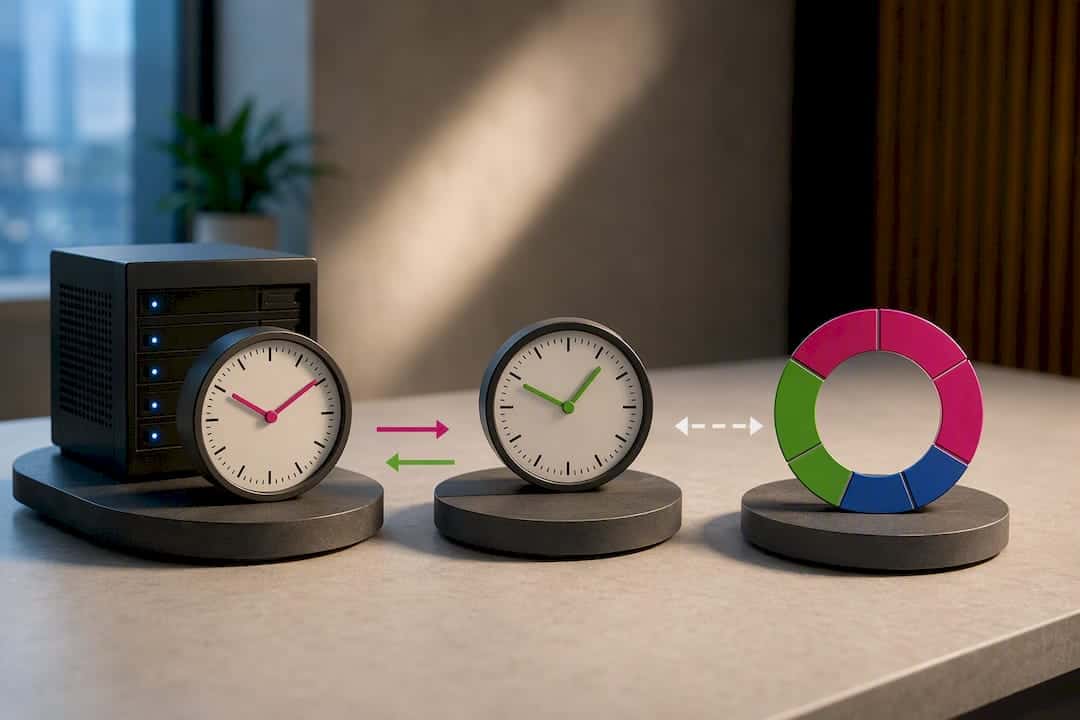
Data problems compound this. Minute-data gaps around server restarts, weekend rollovers, and holiday sessions with thin or missing bars can cause an EA’s internal clock logic to misfire, especially if it relies on bar-close events rather than a live timer. Holiday calendars are another blind spot: a filter built around normal Monday liquidity will misbehave on a bank holiday Monday when volume never shows up.
Mitigation is mostly procedural, not technical:
- Re-verify your broker’s GMT offset at every DST transition, not just once at setup.
- Build a pre-session sanity check that logs the current server time and compares it to expected GMT before the EA is allowed to trade.
- Set an alert (email, push, or log flag) if the EA detects a data gap longer than a few minutes right before a scheduled session open.
- Treat known holiday calendars as an additional exclude-mode layer on top of your standard weekday filter.
Pro Tip: Keep a simple spreadsheet of your broker’s historical DST transition dates for the past year or two. When performance dips unexpectedly around a seasonal boundary, check that list before you start second-guessing your strategy logic.
How to Validate a Time Filter Without Fooling Yourself
A backtest showing a filtered window outperforming the unfiltered baseline is the easiest number in trading to produce and one of the least trustworthy. Naive in-sample testing invites lookahead bias and multiple-testing problems: if you slice the trading day into 24 one-hour windows and test each one, you’ll find a handful that look great purely by chance, not because they hold a real edge.
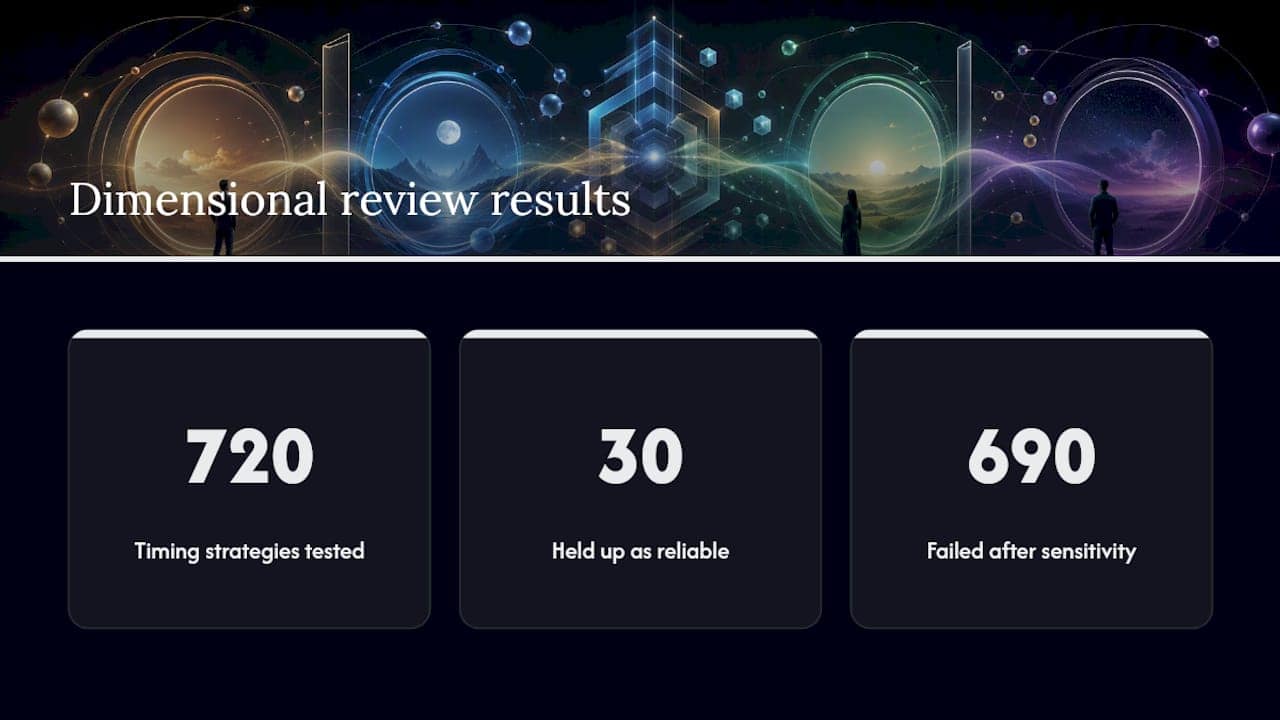
Dimensional’s own review makes this concrete: researchers tested 720 timing strategies and only 30 held up as genuinely reliable, with 690 failing to hold their apparent edge once parameter sensitivity was accounted for. A small tweak to a single input was enough to cut apparent excess returns roughly in half in some cases. That’s the exact trap a time-window scan sets for you.
Walk-forward testing is the practical fix. Split your history into sequential in-sample and out-of-sample blocks, optimize the window only on the in-sample portion, then test it forward on data the optimization never saw. Add an embargo period between the two blocks so information can’t leak backward. And build in transaction costs from the start, not as an afterthought: spread and slippage during your chosen window need to be part of the evaluation, since a filter that looks profitable gross of costs can turn negative once realistic execution costs are applied.
There’s also a more rigorous way to decide whether a signal inside your window is worth acting on at all, rather than just filtering by clock time alone:
A decision-theoretic threshold estimates the minimum win probability a signal needs to justify action, derived from expected win and loss magnitudes plus a safety margin: π* = (μ⁻ + λ) / (μ⁺ + μ⁻). Below that threshold, the expected cost of acting outweighs the expected benefit, even inside your best trading hours.
That formulation, described in a decision-theoretic framework for market timing, reframes the question from “is this a good hour” to “does this specific setup clear a probability bar worth the risk.” A time filter narrows the field of candidates; it shouldn’t be the only test a trade has to pass. Past results do not guarantee future performance, and no backtest window, however carefully validated, removes that uncertainty.
Pairing Time Filters With Order Flow and Execution Rules
A time filter is a gate, not a signal. It tells the system when trading is allowed, not whether the current setup is actually good. Treating an open window as an automatic green light is how traders end up taking mediocre entries just because the clock says it’s session hours.
The stronger approach layers a confirmation requirement on top of the time gate. Order-flow signals, absorption drying up, delta divergence, tape activity turning, give a live read on whether real participation backs a move, and traders who use this confirmation often enter earlier and with tighter stops than waiting for a candle close. Inside your London to New York overlap window, that might mean requiring visible aggressor exhaustion before a reversal entry, not just the window being open.
Execution and risk rules round out the system. A few worth building in alongside any time filter:
- Widen or reduce position sizing based on typical volatility for that specific window rather than using one static size all day.
- Add a hard news blackout rule that overrides the time filter entirely around scheduled high-impact releases.
- Log latency between signal generation and order execution; a filter that assumes instant fills will misbehave if execution lags during volatile opens.
- Build duplicate-order checks so a reconnect or restart doesn’t fire the same signal twice inside one window.
Pro Tip: If your EA runs alongside a trade copier replicating orders to multiple accounts, keep the time filter logic on the master account only. Filtering on every client account independently invites clock-drift mismatches between machines that are hard to diagnose later.
Deployment Checklist Before You Go Live
Copy this into your own deployment notes rather than trusting memory once you’re managing several accounts at once.
- Verify broker server time against GMT and confirm the EA’s expected timezone input matches it.
- Run a replay or demo test that deliberately triggers trades just inside and just outside the filter window.
- Confirm the EA logs a clear pass/block decision for every time-filter check.
- Pilot on a small live account or minimal lot size for at least one full weekly cycle before scaling up.
- Set up latency and error-log monitoring so a missed auto-close or delayed entry gets flagged automatically.
- Re-run the sanity check at every DST transition and after any broker server maintenance notice.
- Define a rollback trigger in advance, such as three consecutive filter misfires, that pauses the EA until reviewed.
Pro Tip: After any live incident involving a filter misfire, write a two-line post-event note: what broke, what fixed it. Six months later, that note saves you from re-diagnosing the same DST or offset issue from scratch.
Running Time Filters Alongside a Local Trade Copier
Running your EA’s time filter and your trade copier on the same host removes a variable most traders never think about: routing risk. When the copier and the filter live on separate machines or a cloud relay sits between them, you’re depending on two clocks and a network hop staying in sync. Run them locally on one VPS and there’s one clock to align, one log to check.
Local Trade Copier’s time-range filter documentation covers this exact setup for MT4 and MT5 accounts. My practical tip: sync your EA’s server-time check and your copier’s scheduling on the same VPS instance before you trust either one in production. Mismatched clocks between the two are a quieter failure than a broken filter, and harder to catch until something’s already gone wrong.
— Rimantas
Try Time-Range Filtering With Local Trade Copier
If you’re already running a time-based filter on your master EA, the next problem is making sure every client account respects that same window without you re-entering settings on each terminal. Local Trade Copier handles that by running entirely on your own Windows machine or VPS, so the time-range filter, weekday exclusions, and auto-close rules you configure apply consistently across every connected account without routing through an external cloud server.

The feature set lines up directly with what this article covers: configurable include/exclude time ranges, auto-close at your chosen boundary, weekday filtering, and same-host deployment so your filter’s clock and your copier’s clock never drift apart. It works across MetaTrader 4, MetaTrader 5, and DXTrade accounts, copying trades from a single master to multiple client accounts with sub-0.5-second local execution. To be clear: Local Trade Copier is trade replication software only. It copies existing trades and carries no market logic or strategy layer of its own, and past results do not guarantee future performance.
Start with the 7-day free trial demo to see the time-range filter in action, or head straight to the installation guide if you’re ready to set it up on your own VPS.
Sources
For deeper technical grounding, MetaTrader’s own platform documentation explains how strategy tester time maps to live server time. The MT4 GMT offset guide walks through fixing broker time misalignment step by step. For order-flow confirmation methods that pair well with time gating, review the order flow patterns breakdown, and for session structure across major pairs, see the Forex trading hours overview.
- Order flow patterns that precede big reversals — Bookmap blog
- We found 30 timing strategies that “worked”—and 690 that didn’t | Dimensional
- MetaTrader
Recommended
- Fast Trade Copier on MetaTrader 4 (10 orders in 1 second)
- Local Trade Copier DEMO on MT4 and MT5
- Scalping and Copy Trading on MT4 and MT5 (Best Setup to Avoid Delay and Slippage)
- Local Trade Copier installation on MT4 and MT5
